Now open for new accounts

One screen for every order.

Uber Eats, DoorDash, your till and your kiosk all show up on one tablet in the kitchen. Nothing gets missed.

Set it up yourself in about 30 minutes. No sales call, no installer, no contract.

Store 04 Today, from 5am 3 cooking · 48 done
● Live This is the real screen. Watch an order come in, turn green when it is ready, then clear.
Orders come from Uber EatsDoorDashSquare tillYour websiteYour kiosk
What you get

Three things change on day one.

Nothing gets missed

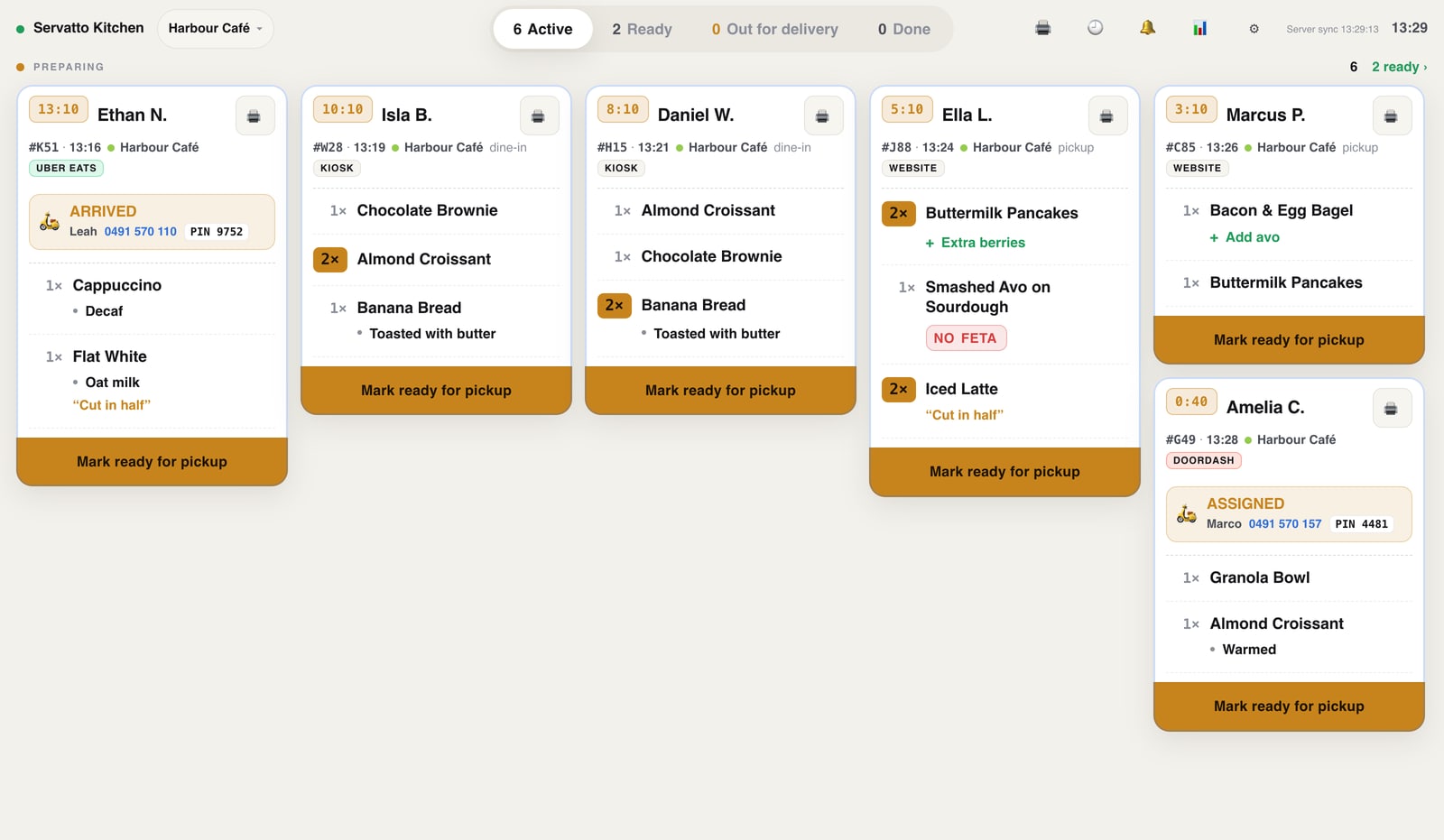
Every order lands on one screen, oldest at the top. Your staff stop checking four tablets to find what is late.

Tickets print themselves

A kitchen ticket for the order. A sticker for each item. Both print straight from the tablet on the bench.

Customers stop asking

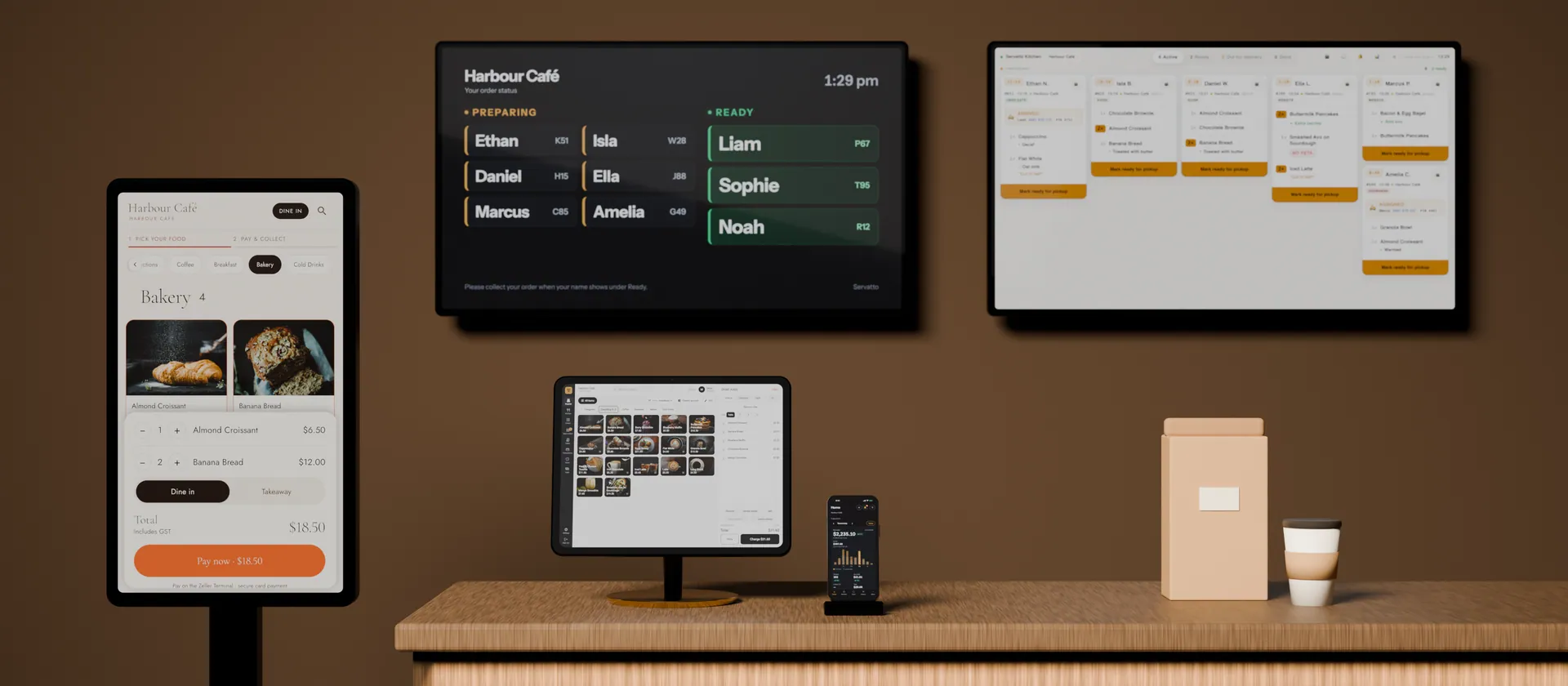
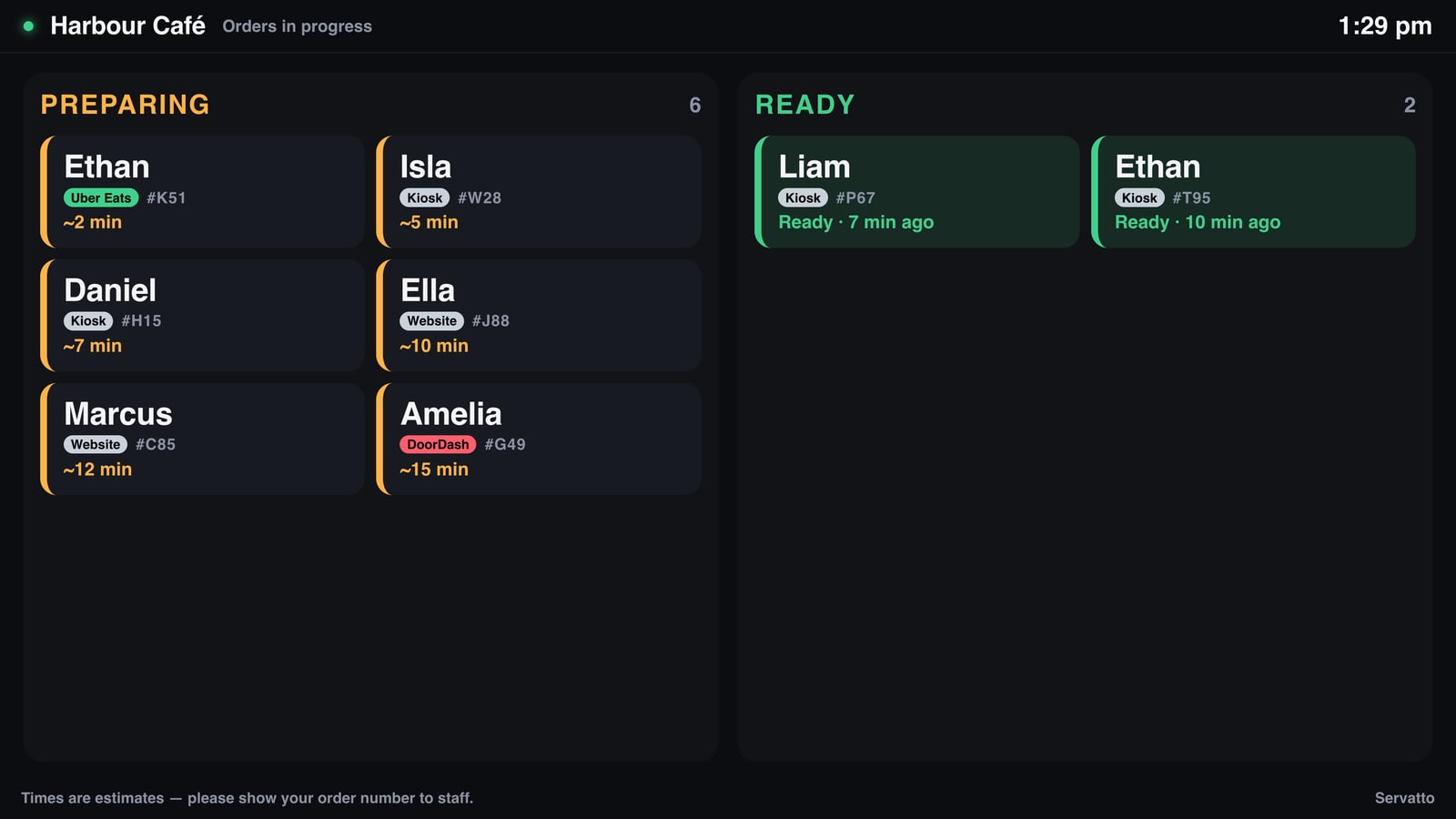
A TV in the shop shows whose food is ready. Fewer people standing at the counter asking if theirs is done.

The problem

Right now your orders are in four places.

One tablet for Uber Eats. One for DoorDash. The till for walk-ins. And the kiosk. Somebody has to watch them all.

Uber Eats tablet

2 orders late

DoorDash tablet

Driver waiting

Your till

Not on any screen

Kiosk

Printed, then lost

Four apps. Four places to mark food ready. And no one screen that tells you what is running late.

How it works

Four steps. That is the whole thing.

Servatto does not take orders and it does not take money. It reads the orders you already get.

1

An order comes in

From any app, or from your till. It shows on the kitchen screen in seconds. A ticket prints if you want one.

2

The kitchen makes it

A clock shows how long it has been waiting. When the food is up, staff tap it once.

3

The customer is told

Your TV shows their name and "Ready". The app is told too, so the driver turns up at the right time.

4

The day adds up

You see what sold, what the apps took in fees, and which dishes go best. Per shop, or all shops together.

Orders come in from

Uber Eats
DoorDash
Your Square till
Your website
Your kiosk
Servatto One screen
in the kitchen

And come out as

A kitchen ticket
A sticker for each item
"Ready" on the customer TV
"Ready" sent back to the app
Your numbers at the end of the day
What you need

Three things. You probably have two of them.

An Android tablet

Any cheap one will do. It sits in the kitchen. Most shops already have one from a delivery app.

A Bluetooth receipt printer

The printer already in your kitchen most likely works. Only needed if you want printed tickets.

A TV — only if you want one

For the customer screen out front. Any TV with a browser, or a $50 Chromecast plugged into an old one.

Nothing to buy from us. No computer in the office, no cables across the kitchen, and nobody has to come and install anything.

The three parts

Start with the kitchen screen. Add the rest later.

They all share one account and one set of orders. Nothing to set up twice.

Ready now

Servatto Kitchen

The screen your staff work from. Every order in one list, oldest first. Tap once when the food is up. Tickets and stickers print from the tablet on the bench.

  • Delivery orders and counter orders in one list
  • Prints kitchen tickets and item stickers
  • Change how long food takes — on every app at once
  • Shows if a customer has ordered before
  • Works on the tablet, or in any browser
KITCHEN SCREEN · STORE 04
Marc D. · Uber Eats04:12
Table 6 · Walk-in01:47
Priya K. · KioskREADY
MARC D.
#A417
UBER EATS  ·  7:42 PM

1 x CHEESEBURGER
* Extra cheese
* NO PICKLES
2 x LOADED FRIES
* Add bacon

Thank you for ordering, Marc!
Made fresh, just now.

This is what prints. Big name on top so staff can read it across the kitchen, and your own thank-you line at the bottom.

Be clear

What it does, and what it never touches.

It does

  • Put every order on one screen
  • Print kitchen tickets and item stickers
  • Set how long food takes, on every app at once
  • Tell the apps when the food is ready
  • Show customers a "ready" screen on a TV
  • Add up your day: sales, app fees, best sellers

It does not

  • Take your money. Square still does that.
  • Take a cut of your sales. Ever.
  • Need a computer or an IT person.
  • Change your menus or your prices.
  • Touch your payouts or your app contracts.
  • Tie you in. Pay monthly, stop when you like.
Price

One price per shop. Never a cut of your sales.

Open a second shop and it is billed from that day. Close one and it stops.

Ready now

Kitchen screen

A$39per shop, per month

The kitchen screen, every order source, printing, and your daily numbers.

  • As many tablets as you like
  • Tickets and stickers
  • Reports for every app
Ready now

Order kiosk

A$39per shop, per month

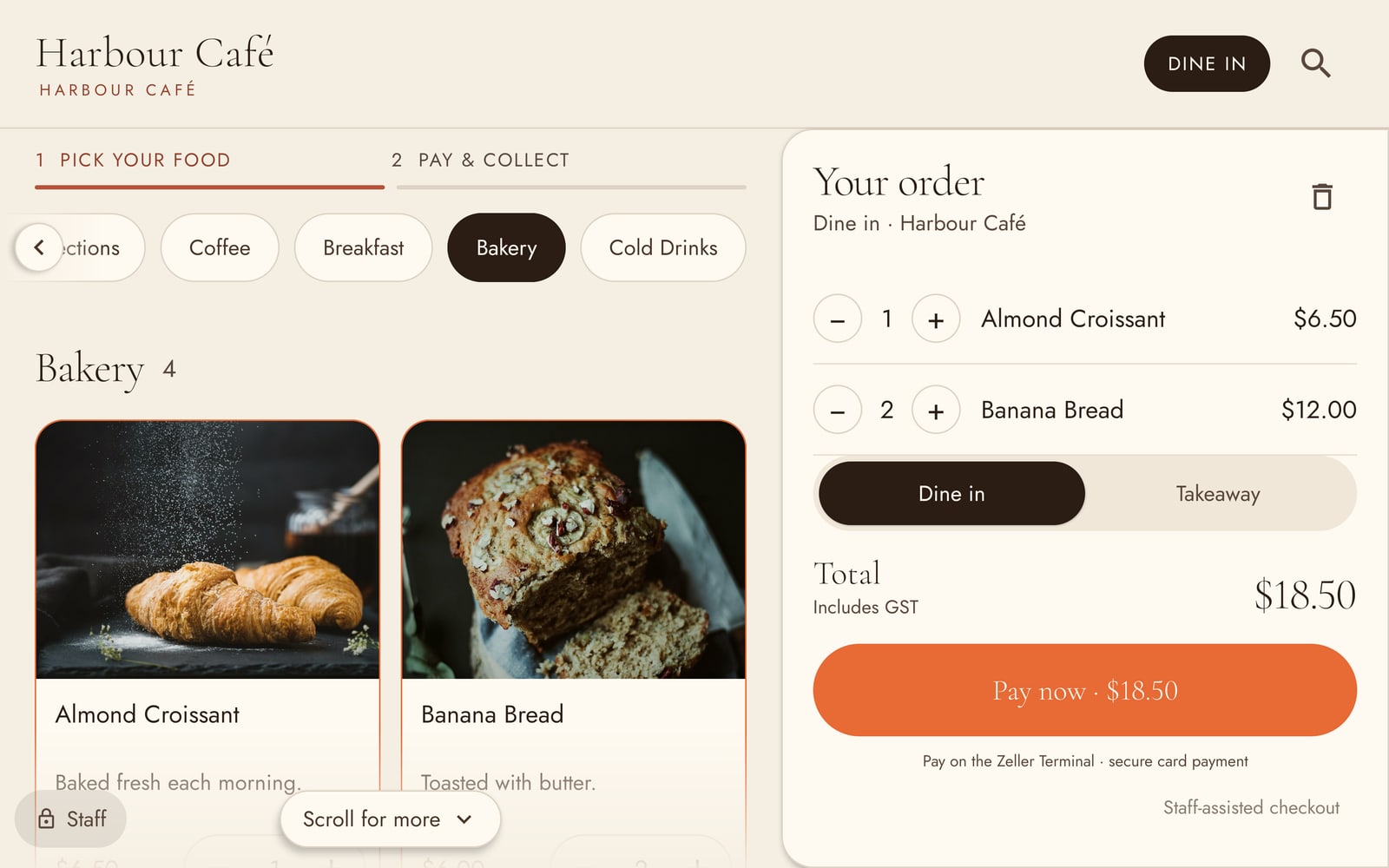
Let customers order themselves at the counter.

  • Menu straight from your till
  • Card reader beside it
  • Orders land on the same kitchen screen
Ready now

Customer TV

A$14per TV, per month

The waiting screen out front. Also works as a menu board.

  • Always matches the kitchen
  • Any TV with a browser
  • Nothing extra to buy

14 days free to try it Card at sign-up Stop any time Prices include GST No setup fee No lock-in contract

Work out your price

Turn on only the parts you want.

Tap what you need and the price changes as you go. You choose this again inside your account, shop by shop, so nothing here is locked in.

How many shops 1
What you have picked
After your 14 free days A$39a month GST included. Stop any time.
Start 14 days free
Built to run in production Hosted in AustraliaEncrypted in transit and at restOne account, every locationNo commission on your salesKeeps working when the internet drops
Questions

What everyone asks first.

Do I have to change my till?
No. Servatto just reads the orders from Square and from the delivery apps. Your payments, menus, prices and payouts stay exactly as they are. If you stopped using Servatto tomorrow, nothing about how you take money would change.
What do I have to buy?
Nothing from us. You need an Android tablet for the kitchen. If you want printed tickets, you need a Bluetooth receipt printer — the one you already have most likely works. A TV is only needed if you want the customer screen.
Is this the same as Square's kitchen screen?
No. Square's screen only shows Square orders. It will not show your Uber Eats or DoorDash tickets, it does not print item stickers, it has no customer TV, and its reports stop at Square. Servatto is built for shops where most orders come from somewhere else.
What if the internet drops in the middle of service?
The screen keeps showing everything it already has, and the printer keeps working — it is paired to the tablet, not to the internet. When you are back online, anything that came in meanwhile appears straight away.
How long does it take to set up?
About thirty minutes, and you do it yourself. You make an account, connect Square, add your delivery account, pair the printer and run a test ticket. Nobody has to visit the shop, and you do not have to wait for us. If you get stuck, email us and a real person answers.
Can I try it before I pay?
Yes — 14 days free, starting the moment you make your account. We take a card at sign-up so nothing switches off in the middle of a Friday night. Stop any time in the first 14 days and you pay nothing.
What happens if I want to stop?
You cancel from inside your account, in a couple of taps. It keeps running until the end of the month you have paid for, then stops. We do not lock you into a contract and we never ask why twice. If a card ever fails, your kitchen screen keeps working while we sort it out — a kitchen never goes dark over a payment.
Who made this?
Servatto is built by people who have worked real services, not by people who have only watched one. Every part of it exists because a kitchen needed it during a rush, and every version runs in live kitchens before anyone else gets it.
Get started

Set it up yourself, tonight.

No sales call. No waiting list. You make the account, connect your shop, and start cooking off it the same day.

You needAn Android tablet. A Bluetooth printer if you want tickets. A TV only if you want the customer screen.
You keepYour till, your menus, your prices and your payouts, exactly as they are
Free for14 days. Card at sign-up, nothing charged until day 15.
Stuck?[email protected] — a real person answers
  1. 1
    Make your account

    Your name, your shop, an email and a password. Two minutes.

  2. 2
    Connect where your orders come from

    Sign in to Square with one tap. Add your delivery account and Uber Eats and DoorDash start flowing in.

  3. 3
    Switch on what you want, shop by shop

    Kitchen screen, customer TV, or both. Add a shop later and it is billed from that day. Close one and it stops.

  4. 4
    Open it on the kitchen tablet

    Go to app.servatto.com on the tablet and sign in. Pair the printer. Run a test ticket. Done. There is an app for the tablet too, if you want one.